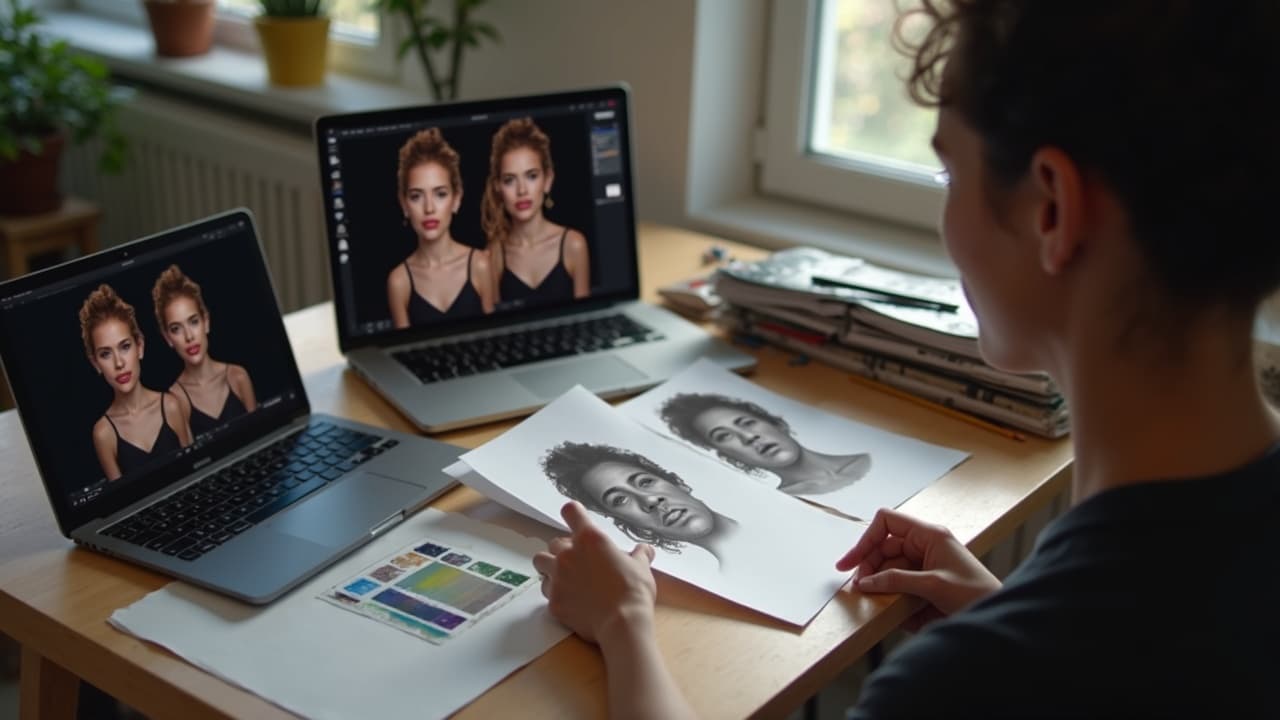
You do not need a perfect sentence to get a crisp AI portrait. You need five plain‑English fields that tattoo well on skin, not just on screen. Name the subject, mood, light, lens, and skin texture, then add constraints that keep ink readable at real tattoo sizes.
The Portrait Prompt Stack, What Actually Matters
Most failed AI portraits miss fundamentals, not fancy adjectives. Whether you use Midjourney, Stable Diffusion, DALL‑E 3, or Adobe Firefly (non-sponsored examples), the model needs grounded photographic cues. Tattoos are translation problems, so prompt like a photographer, then edit like a tattooer.
- Subject, identity, and age, for example “Afro‑Caribbean man, late 50s, salt‑and‑pepper beard, deep smile lines.” This anchors likeness and age markers.
- Mood and expression, for example “subtle half‑smile, calm eyes.” Tiny changes here avoid weird uncanny vibes that look plastic on skin.
- Light and environment, for example “soft Rembrandt lighting, neutral studio gray background.” Strong light choices increase value contrast that heals readable.
- Lens and angle, for example “85 mm portrait lens, straight‑on, eye level.” Lenses control distortion that can stretch on curved body parts.
- Skin detail, for example “visible pores, fine vellus hair, light crow’s feet, realistic freckles.” This stops the airbrushed look.
If you only memorize one workflow, use a two‑pass approach. First, generate a true‑to‑life reference. Second, constrain it for ink with size, contrast, and negative prompts that prevent detail mush. We break those constraints down below and link deeper settings in our prompt tactics article.
Anatomy of a Realistic Face Prompt
Here is a compact template you can paste into your model, then swap specifics. Keep it literal and avoid purple prose. Literal in, literal out is how you get consistent realism that tattoos clean.
- Core template: “Ultra‑realistic head‑and‑shoulders portrait of [subject], [age], [ethnicity], [distinct features]. [Mood/expression]. 85 mm lens, f/2.8, Rembrandt lighting, neutral gray backdrop. Visible pores, fine skin texture, natural hair edges.”
- Tattoo constraints: “High contrast, clear midtones, avoid blown highlights, no background clutter. Composition centered, shoulders cropped. Print‑ready 300 ppi.”
- Negative prompts: “No extra teeth, no asymmetrical eyes, no plastic skin, no eyeliner or makeup unless specified, no jewelry glare, no soft focus, no heavy film grain.”
For speed, build prompt presets inside Procreate, Photoshop, or your ComfyUI/Automatic1111 Stable Diffusion workflow (non-sponsored examples). Lock in the technical lines, then only edit subject, mood, and light. This reduces trial‑and‑error by 50 to 70 percent in day‑to‑day studio use.
Choosing Style Without Losing Likeness
Portrait tattoos tolerate style, but likeness comes first. If the client wants realism with a twist, keep stylization in the background elements or in spot color accents, not in facial anatomy. Tools like ControlNet, IP‑Adapter FaceID, and Photopea overlays help you preserve structure while nudging style (non-sponsored examples).
- Realism plus grit, add “cinematic split lighting, light film grain, desaturated palette” but keep accurate eye shape and dental lines.
- Painterly black and grey, add “soft charcoal edge, paper tooth texture” while retaining value hierarchy between forehead, nose, and chin.
- Color pop, specify “neutral skin, subtle spot color on iris or background watercolor” so the face remains readable when healed.
When you switch from screen to skin, high‑frequency textures collapse first. Overly painterly pores will merge. Before you lock the design, review our contrast guide to make sure the darkest darks and lightest lights land where your stencil can carry them.
Lighting, Lens, and Angle, The Realism Trifecta
Lighting sets your healed contrast, lenses control distortion, and angle shapes emotion. For portraits, 85 mm is classic because it flatters features and avoids bulbous noses that can look wonky when the arm twists. Specify key light position and falloff, not just “soft light.”
- Rembrandt lighting, cheek triangle highlight, medium shadow depth. Great for dramatic black and grey. Pairs well with 85 mm, eye‑level framing.
- Butterfly lighting, centered light above the camera for beauty looks. Flattering but watch under‑nose shadows on smaller sizes.
- Split lighting, light from 90 degrees. Strong mood and 9/10 contrast, but soften the shadow edge or it can read harsh on curved placements.
- Golden hour, warm side light with cool fill. Beautiful on color portraits, but keep skin whites actually white to avoid muddy heals.
If you shoot your own references, cheap continuous lights like Godox SL60W or Aputure 120D and a gray backdrop work wonders (non-sponsored examples). A clean reference beats any adjective in a prompt. The AI should enhance, not invent, your lighting logic.
Skin Texture, Pores, and Ageing Details
Realistic skin sells a portrait. Ask for pores, fine vellus hairs, matte T‑zone, and specific age markers like crow’s feet or nasolabial folds. Avoid glossy beauty retouch unless the brief is fashion. Gloss often heals as a flat highlight that looks sticker‑like.
Scale matters. Micro‑portraits under 4 inches cannot hold high‑frequency detail. For single‑face realism, aim for 6 to 8 inches tall minimum, then drive contrast into the eyes, nostrils, and upper lip. That is where viewers read life first.
Plan for skin reactivity too. Some clients scar or raise more than others. The American Academy of Dermatology notes tattoo reactions can include granulomas and keloids, and they can appear long after the session. Read their guidance at the AAD’s site and keep your designs legible if mild swelling softens edges.
Color, Black and Grey, and Ink‑Friendly Constraints
Color portraits shine when you keep skin neutrals clean and aim contrast into features, not background chaos. Black and grey portraits excel at longevity because simplified value maps hold over years. Both work if your prompt keeps the face dominant and avoids busy props.
- Minimum size, 6–8 inches tall for single faces. Below that, eyes and teeth lose micro‑contrast and blend during healing.
- Ink palette, stick to stable sets like Eternal Ink, World Famous, and Dynamic Black (non-sponsored examples). Ask your artist what they trust on your skin tone.
- Backgrounds, use low‑frequency gradients or soft bokeh. Textured backdrops tend to scab patchy and steal attention.
- Glints and highlights, describe them but cap maximum white area so they do not heal as flat chips. Ask for “soft specular highlights, limited area.”
If your AI keeps adding makeup or jewelry glare, push those to negative prompts. And if you plan to use second‑skin bandages like Saniderm, Tegaderm, or Derm Shield during healing, keep the first week low on friction and sweat. The Cleveland Clinic estimates outer‑layer healing in about 14 to 21 days, with deeper settling beyond that. See their guidance at the Cleveland Clinic site.
Negative Prompts and Common Failure Modes
Negative prompts are your safety rails. Portrait models love to hallucinate extra teeth, asymmetrical pupils, and plastic skin. Bake your “do not” list into every run and keep a visual checklist beside your station.
- Core negatives, “extra fingers, extra teeth, lazy eye, cross‑eyed, misaligned ears, skewed nostrils, plastic skin, excessive blur, lens flare, rim light halo.”
- Texture control, “over‑smoothed skin, poreless, waxy, excessive beauty retouch, sharpen halos.”
- Tattooability, “low contrast, muddy midtones, tiny high‑frequency detail, micro text, heavy background clutter.”
For deeper model settings, seed control, and cfg guidance, read our AI prompt settings guide. Build a reusable boilerplate so every new portrait starts safe and adjustable.
From Screen to Stencil, Preparing AI Portraits
A perfect image still fails if your stencil is mush. Convert your final to a tattoo plan, not just a pretty print. Separate planes, simplify midtones, and mark your darkest darks that drive facial read from three feet away.
- Technical prep, export 300 ppi PNG or TIFF. In Photoshop, posterize to 4–6 levels, then hand‑paint transitions. In Procreate, use separate layers for eyes, nose, mouth (non-sponsored examples).
- Stencil workflow, print to Spirit Classic stencil paper using a Brother PocketJet or Epson EcoTank on carbon sheets. Apply with Stencil Stuff or Electrum.
- Value map, outline only the essential edges. Use soft shaded guides for cheeks. Too many lines in cheeks or forehead will look etched and aged.
- Test print, scale to the client’s body. Wrap a paper mockup to check distortion and flow. Recompose following our composition guide.
Once tattooed, aftercare influences final contrast. Clean hands, gentle wash, and light ointment are basics. The FDA reminds consumers that tattoo inks and pigments are not FDA‑approved for injection, and contamination issues do arise. Review their safety notes at the FDA’s page and keep clients in the loop on red flags. For medical warning signs and timelines, see our infection signs guide.
Placement, Flow, and Body Curves
Portraits wrap. Cheeks stretch on delts, forearms twist, and ribs pull thin. Prompt with the planned angle in mind, then test on the body with a printout. Keep eyes parallel to the floor unless the brief calls for a tilt.
For multi‑portrait compositions or wrap‑around work, plan the negative space and sightlines first so each face breathes. Our sleeve mapping guide walks through curvature, seams, and how to keep flow strong from every angle.
Ethics, Rights, and Client Likeness
Get written consent to use personal photos and confirm that any celebrity or third‑party likeness is desired, lawful, and appropriate in your locale. When in doubt, work from client‑owned images or studio shoots. Keep training data ethics in mind, and avoid recreating another artist’s style without credit.
Be transparent about AI in your workflow. Clients care about how their face is handled. For a balanced view on safety and collaboration, read our AI safety and ethics piece. Medical reactions and aftercare questions are best discussed with licensed pros. The AAD and Cleveland Clinic both offer public guidance that is clear and conservative.
Ready to build a portrait that actually tattoos well? Use AI for Tattoo to generate a clean, high‑contrast face in minutes, then preview it on your body. Start a design in Create and see placement instantly with our Try‑On tool. Explore community‑tested styles in Explore and lock your prompt stack before you book.
Try AI for Tattoo Free